

2 Easy & Quick Ways to Recover Your Forgotten Facebook Password


Forgot your Facebook login password? Unable to access your account?
This is a common issue. Strong passwords improve security, but they’re also easy to forget. In some cases, losing access to your phone can make logging in even more difficult.
Don’t worry—you’re not stuck. In this guide, you’ll learn two simple and effective ways to recover your Facebook password and quickly get back into your account.
Method 1: Instantly Recover your Facebook Password Automatically
If you ever forget your Facebook password, now you can easily & instantly recover all your lost Facebook passwords without any technical knowledge.
With just one click, XenArmor Social Password Recovery Pro can scan your system and recover all your saved Facebook passwords in seconds.
Follow these simple steps,
- Download & install the software from here
- Click on “Recover Passwords”
- Instantly see all your saved Facebook passwords
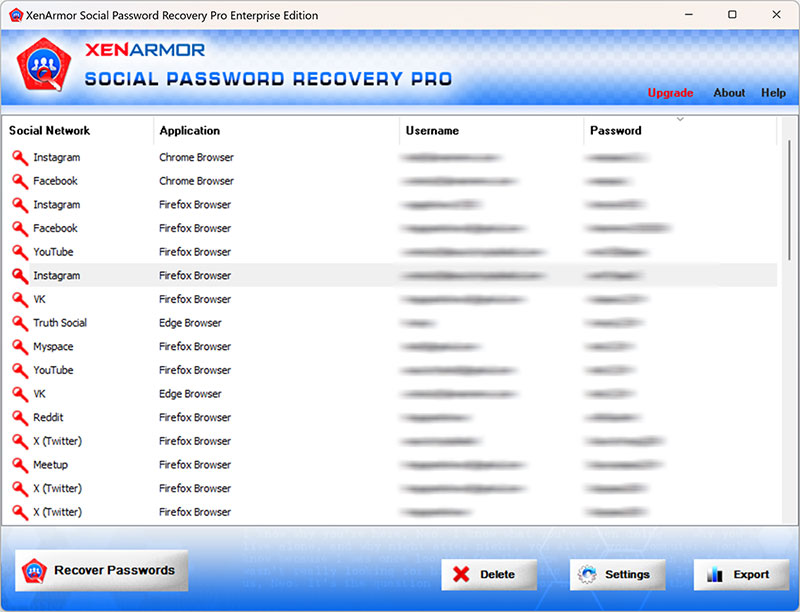
Here are the key features loved by users,
- Support 60+ popular social networks
- Recover from 125+ Windows applications
- Extract from all profiles & custom locations
- Delete saved password to prevent others or ransomwares from stealing it
- Support command-line & automation
- Export passwords to PDF, HTML, CSV, JSON & more
👉 Free Download XenArmor Social Password Recovery Pro
Method 2: Reset your Facebook Password
If you forgot your password and could not recover it using First method then only way is to reset your Facebook password.
Here are the 5 steps to easily reset your Facebook password
Step 1: Visit Facebook login page, click on Forgot Account
On the Facebook login page, click on Forgot account to start the reset password operation.

Step 2: Enter your Facebook Login Email or Mobile number
In the next page, enter your login email or phone number used for Facebook login as shown below,
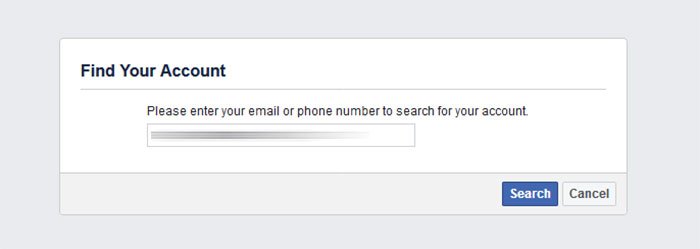
Step 3: Choose the option to Reset your Facebook password
Here you will be given multiple options to reset your Facebook Password.
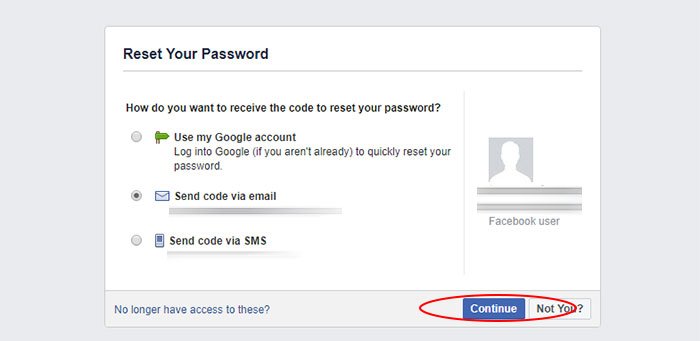
Please note that these options change as per your FB login email or mobile. Choose the easier option based on next steps.
Step 4: (1st Option) Verify your Email
If you select the first option (use my Google/Yahoo account) then you will see popup screen asking you to login to your Gmail or Yahoo email (if not already logged in another tab).
Once done, you will see following message that your email has been verified and you can now proceed to enter New Password (Step 5).
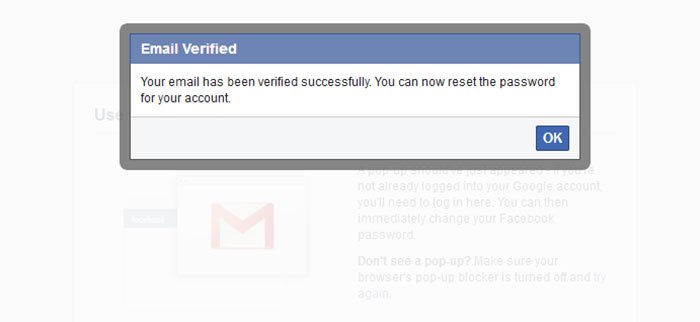
Step 4: (2nd & 3rd Option) Verify Reset Security Code
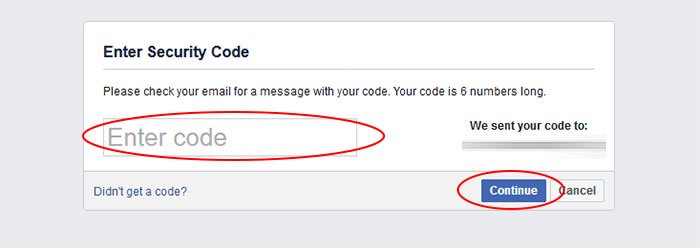
If you select 2nd or 3rd option (Send code via Email or SMS) then you will receive Facebook Reset Security code to your email or mobile.
Copy this Reset code from your Email or Mobile and enter it in the next screen as shown below,
Step 5: Enter New Facebook Password
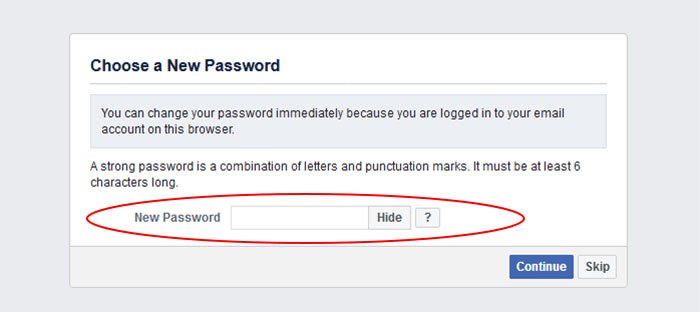
Once you have completed above verification (Email or Reset code) you will be finally asked to enter New Password as shown below.
Make sure to remember this new password else you have to repeat the whole process again next time 🙂
That’s all. Congratulations, now you have successfully got back your Facebook account.
Please comment below if this article has helped you. Any suggestions are welcome.
Recommended Posts

How to Switch from PIN to Password Login on Windows
November 29, 2025