

How to Recover Remote Desktop Password from UltraVNC

In this article, you’ll learn where UltraVNC stores your login passwords, how they are protected, and how you can easily recover them.
UltraVNC Password Secrets
UltraVNC saves your remote desktop password in a file called “ultravnc.ini” at following location,
[Latest Version]
C:\Program Files\Uvnc Bvba\UltraVNC\ultravnc.ini

[Older Version]
C:\Program Files\UltraVNC\ultravnc.ini
This “ultravnc.ini” file contains password in encrypted format as shown below,
[ultravnc]
passwd=9D6EE7BBCB6C60CA0E
passwd2=9D6EE7BBCB6C60CA0E
UltraVNC encrypts the above remote desktop password using DES algorithm with 8 byte magic key.
How to Recover UltraVNC Passwords Automatically
Now you can easily recover all your forgotten passwords from “UltraVNC” without any technical knowledge.
With just one click, XenArmor All-In-One Password Recovery Pro can recover all your saved UltraVNC passwords in seconds.
Follow these simple steps,
- Download & install the software from here
- Click on “Recover Passwords”
- Instantly see all your saved UltraVNC passwords
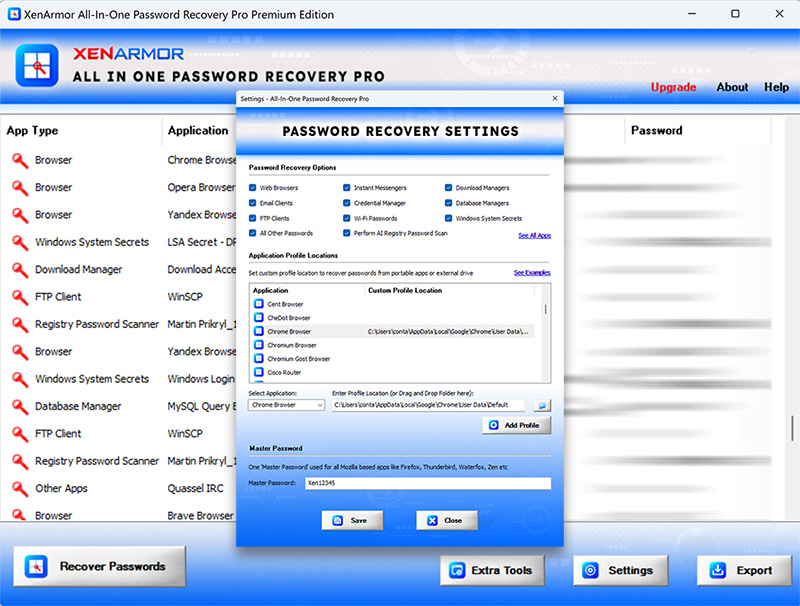
Here are the key features loved by users,
- Recover from 300+ popular Windows apps
- Recover Website, Social Network, Email, Messenger, Database, FTP, Wi-Fi & Windows Vault Passwords
- AI based Registry password scanner
- Extract from all profiles & custom locations
- Support command-line & automation
- Export passwords to PDF, HTML, CSV, JSON & more
👉 Free Download XenArmor All-In-One Password Recovery Pro



hi can you decrypt a VNC password without downloading any software and installing, i have the vnc ini file and know code just, not how to decrypt it?