

User Guide – Database Password Recovery Pro 2025 Edition

Contents
- About
- Features & Benefits
- Requirements
- Installation
- How to Use?
- Right Click Menu Options
- Settings
- Settings – Custom Profile Location
- Database Password Report
- How to Use Command-line Version?
- Automation of Database Password Recovery
- Frequently Asked Questions
- Version & Release History
- Contact XenArmor
About
 XenArmor Database Password Recovery Pro is the only enterprise software to instantly recover your lost or forgotten passwords of MSSQL, MySQL, Oracle, SQLite, MariaDB, MongoDB etc from 30+ popular database managers.
It automatically detects & decrypts passwords from secret password store of each supported database clients.

Supports 30+ Database Managers
XenArmor Database Password Recovery Pro supports password recovery from following popular database clients,
- AnySQL Code Factory
- AnySQL Maestro
- ASA Code Factory
- ASA Maestro
- DB2 Code Factory
- DB2 Maestro
- Firebird Code Factory
- Firebird Maestro
- FlameRobin
- MaxDB Code Factory
- MaxDB Maestro
- MSSQL Code Factory
- MSSQL Maestro
- MySQL Code Factory
- MySQL Query Browser
- MySQL Maestro
- Navicat MariaDB
- Navicat MongoDB
- Navicat MySQL
- Navicat Oracle
- Navicat PostgreSQL
- Navicat Redis
- Navicat SQLite
- Navicat SQL Server
- Oracle Code Factory
- Oracle Maestro
- PostgreSQL Code Factory
- PostgreSQL Maestro
- RazorSQL
- SQLite Code Factory
- SQLite Maestro
Features & Benefits
- Recover passwords from 30+ database managers
- Find passwords of MSSQL, MySQL, Oracle, SQLite, MariaDB, MongoDB etc
- Recover database passwords automatically, no need waste time searching for lost passwords
- Recover from both 32-bit & 64-bit apps
- Command-line version to run from scripts
- Automation of database password recovery
- Shows app name, DB server, database name, username, password etc
- Recover from portable apps or custom app locations
- Backup passwords to HTML,CSV,XML,JSON or SQLite file
- Unlimited Edition (100% Portable): Run directly from USB disk
- Free 1 Year Download Protection Warranty
- Lifetime License – No worries about license expiry
- Supports All Windows PCs (Vista to new Windows 11)
Requirements
XenArmor Database Password Recovery Pro works on both 32-bit & 64-bit platforms starting from Windows Vista to Windows 11.
Here are the specific details,
- Installation Size: 10 MB
- RAM: 4 GB+ Recommended
- Operating System: Windows 11,10,8,7,Vista, Windows Server 2022,2019,2016,2012,2008 (32-bit/64-bit)
Installation
XenArmor Database Password Recovery Pro comes with standard windows installer which allows seamless installation & un-installation.
Launch the setup and follow on-screen instructions to complete the installation as shown below,

After installation, it will launch your software showing activation screen as follows,

Anytime, you can uninstall it directly from the Windows Add/Remove Programs.
How to Use?
XenArmor Database Password Recovery Pro is very easy to use. After installation, just launch it. It will instantly recover and show all the stored Database login passwords from all the top databases as shown below,

Right Click Menu Options
Right click context menu helps you to quickly & easily copy various fields (such as Database, Username, Password etc).Also you can launch the selected database, remove the password from selected database as shown below,

Settings
Advanced Database Settings help you to tweak & customize Database Password Recovery operations as per you need.
Click on ‘Settings’ button from the main GUI screen and you will see the ‘Database Settings’ dialog as shown below,

Settings – Custom Profile Locations
This is one of the unique benefits of this software. It helps you to specify the custom profile paths for each supported database.
To set the custom profile path, click on Settings button in main GUI screen and you will see the Settings dialog as shown below,

This is useful in cases when you want to recover passwords from portable database, non-default profile location or external drive.
Add, Edit or Remove Custom Locations
Follow these simple steps to manage custom profile locations for any application.
- Go to Settings → Application Profile Locations (second section)
- Double-click an application from the list or select it from the dropdown
- Enter the path manually, click Browse, or simply Drag & Drop the folder
- Click Update to save the location
- Select the application from the dropdown or double-click it in the list
- Edit the current path or choose a new one using Browse or just Drag & Drop the folder
- Click Update to apply the changes
- Right-click on the application in the list
- Select Remove Profile Location
Once finished, head back to the main screen and click “Recover Passwords” to recover passwords from your new custom locations.
Profile Locations for All Applications
Listed below are the default profile locations for all supported applications.
If your application uses a different path, or you want to select a profile of another user, simply enter the path using the “Custom Location” option described above.
| Database Managers | Profile Location |
|---|---|
| FlameRobin | C:\Users\[user_name]\AppData\Local\FlameRobin\ |
| MySQL Query Browser | C:\Users\[user_name]\AppData\Roaming\MySQL\ |
| RazorSQL | C:\Users\[user_name]\AppData\Roaming\RazorSQL\ |
Database Password Report
XenArmor Database Password Recovery Pro helps you to generate detailed report in both HTML, CSV, XML, JSON & SQLite format. Once passwords are recovered, simply click on Report button and then select the Type of Report (HTML or CSV or XML or JSON or SQLite) from the ‘File Save Dialog’.
Here is the sample of HTML based Database Password Report,

How to Use Command-line Version?
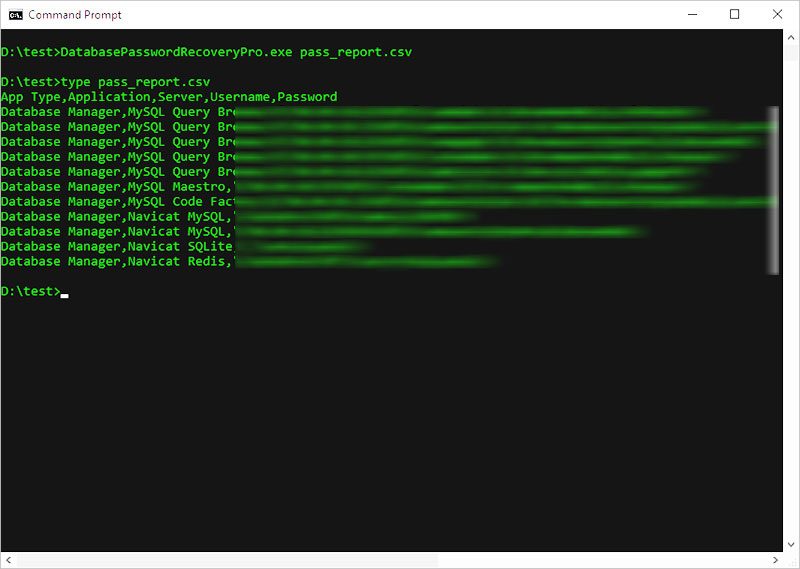
XenArmor Database Password Recovery Pro supports both GUI & command-line in the single executable file. Command-line version helps you to fully automate database password recovery operation. You can also easily integrate it into your scripts or programs as part of advanced operations.
Here is the screenshot of Command-line version (passwords masked for security reasons)
Here are various command-line options & examples
DatabasePasswordRecoveryPro.exe [report_file]

// Recover and save the password report in HTML format (default)
DatabasePasswordRecoveryPro.exe report.html

// Recover and save the password report to CSV file
DatabasePasswordRecoveryPro.exe report.csv

// Recover and save the password report to XML file
DatabasePasswordRecoveryPro.exe report.xml

// Recover and save the password report to JSON file
DatabasePasswordRecoveryPro.exe report.json

// Recover and save the password report to SQLite database file
DatabasePasswordRecoveryPro.exe report.db

// Save the password report to selected folder
DatabasePasswordRecoveryPro.exe "c:\my reports\report.html"
By default it will generate report in HTML format. You can specify csv, xml, json or db extension to Output File to generate report in CSV or XML or JSON or SQLite database format respectively.
Automation of Database Password Recovery
XenArmor Database Password Recovery Pro also can be run via command-line. This is useful in fully automating your Database Password Recovery operations daily or periodically. It can generate detailed report which can be used for future auditing or backup purposes.
Here are simple steps to automate Database Password Recovery using Windows Task Scheduler.
1) Launch Windows Task Scheduler from Administrative Tools in Control Panel. Next click on “Create Basic Task” on right side panel.
2) On the Basic Task page, enter name as ‘Database Password Recovery’. On next page select ‘Daily or Weekly or Monthly’ with appropriate Time settings as per your need.
3) Next on the ‘Action’ Page, click on Start Program and then enter command & arguments as shown below,

For more command-line options refer to Command-line Version section.
4) Finally click on Finish button to schedule the automatic Database Password Recovery operation.

Frequently Asked Questions
It automatically scans and detects all saved passwords from popular Database Managers on your system.
Yes, the software is 100% safe & secure to use
- Digi-signed with EV Certificate by Sectigo – ensuring authenticity & safety.
- Trusted by Antivirus and Windows SmartScreen
Intended for legitimate purposes only, such as:
- Recovery of your own passwords
- Recovery service for clients
- IT administration & auditing
- Digital forensics & investigations
- Security professionals & penetration testing
Note: Unauthorized access is strictly prohibited and may result in license termination.
No, the software is designed for users of all skill levels.
With one-click, it can scan & recover all passwords automatically.
The Trial version is available for both Basic & Premium Edition.
It includes all features of the full version for evaluation with minor limitations,
- Shows only first 2 characters of recovered passwords
- Command-line features disabled
We recommend trying the Trial version before purchase to verify password recovery. If you need any assistance, feel free to contact our support team.
Generally free password tools flagged as PUA (Potentially Unwanted Applications) by antivirus.
However, this software is enterprise-grade and digitally signed with EV Code Certificate by Sectigo, a leading certificate authority – ensuring authenticity & safety.
This is typically a false positive. You can resolve it by:
- Adding the software to your antivirus whitelist/exclusions
- Temporarily disabling antivirus protection during installation/running
- Reporting the file to your antivirus vendor as a false positive
For Windows Defender, you can quickly add exclusions or temporarily disable protection using:
XenArmor Windows Defender Manager Pro
The “Unlimited Edition” trial is not offered for security reasons.You can test the Premium Edition Trial, which has the same features.
The Unlimited Edition adds 100% portability and unlimited PCs support.
Yes, Premium and higher editions include command-line (CLI) support, allowing you to automate password recovery tasks or run it from your scripts.
For detailed usage and examples, please refer to the User Guide.
For security professionals and penetration testers, we recommend:
XenArmor All-In-One Password Pro Command-line
Yes, the “Unlimited Edition” is fully forensics-ready.
It leaves no file or registry footprints on target system and can be run from USB.
For advanced forensic investigations, we recommend:
XenArmor All-In-One External Drive Password Pro
It instantly recover all saved passwords from local computers and external drives.
Yes, the software supports password recovery from external drives using the Custom Location feature.
Simply specify the application’s profile path in Settings. But this software can recover it only if the passwords are not protected by user-specific encryption.
For 100% & automatic recovery from external drive, we recommend advanced software below,
XenArmor All-In-One External Drive Password Pro
This may occur if the application has a new version with different encryption or profile location. It is also possible that no passwords are currently saved on your system.
Contact our support team with the application name and details such as version, profile location, screenshots for expert assistance — no charges, even for trial users.
Version & Release History
Version 2.0 (2025 Edition): 6th Sep 2025
New 2025 release with following major updates
- Support for latest version of all included Database apps
- Enriched GUI interface for smoother experience
- New cool installer design for easier installation
- New license manager with fall back server mechanism
- Fixed few bugs and performed many code optimizations
- Digitally signed with Sectigo EV code certificate – trusted by MS Smartscreen & Antivirus
- Changed names of Personal/Enterprise Edition to Basic/Premium Edition respectively to make it more user friendly
Version 1.0 (2023 Edition): 30th Sep 2023
First public release
Contact XenArmor
Have any more queries or need any technical clarification? Just write to us at support@xenarmor.com and you will have response within 24 to 48 hours.
For more details visit home page of XenArmor Database Password Recovery Pro
Recommended Posts

Product Guide – Windows Defender Manager Pro 2026 Edition
October 9, 2025
User Guide – Windows Asterisk Password Pro 2025
August 11, 2025
User Guide – MAC IP Scanner Pro 2022
July 18, 2025