

How to Recover Saved Passwords in Comodo Dragon Browser


In this article, you’ll learn where Comodo Dragon browser stores your passwords, how they are protected, and how you can easily recover them.
Comodo Browser Password Secrets
Comodo browser stores all your website login passwords in the “Login Data” file at following location
[Windows Vista/7/8/10]
C:\Users\[user_name]\AppData\Local\Comodo\Dragon\User Data\Default\

[Windows XP/2003]
C:\Documents and Settings\[user_name]\Local Settings\Application Data\Comodo\Dragon\User Data\Default\
This “Login Data” file is stored in SQLite database format. It contains database table called “logins” where each website login details are stored.
Here are some of the interesting fields stored in this table,
origin_url - main link of the website
action_url - login link of the website
username_element - name of the username field in the website
username_value - username used for login
password_element - name of the password field in the website
password_value - password used for login (encrypted)
date_created - date when it is stored
times_used - how many times this password is used
blacklisted_by_user - set to 1 means password is never stored
Here action_url, username_value and password_value refers to website login link, username and encrypted password respectively.
Comodo browser encrypts the website password using Windows DPAPI (Data Protection API) functions.
These DPAPI functions perform encryption of password using user and machine specific data. As a result encrypted password cannot be decrypted by another user or another computer.
Hence Comodo browser password recovery has to be performed on the same computer as same user.
How to Decrypt Comodo Browser Passwords
Comodo uses Windows DPAPI function, CryptProtectData to encrypt the website password. We can decrypt this password using the function called CryptUnprotectData.
Here is the sample C++ program to decrypt the website passwords from Comodo browser.
void DecryptPassword(char *passData, int passLen, char *password, int length)
{
	DATA_BLOB DataPassword;
	DATA_BLOB DataOutput;

	DataPassword.cbData = passLen;
	DataPassword.pbData = (BYTE *) passData;

	if( CryptUnprotectData(&DataPassword, NULL, 0, 0, 0, 0, &DataOutput) == FALSE )
	{
		printf("CryptUnprotectData failed with error 0x%.8x", GetLastError());
		return;
	}

	memcpy(password, DataOutput.pbData, DataOutput.cbData);
	password[DataOutput.cbData] = 0;


	printf("Successfully Decrypted Password is %s ", password);

}
How to Recover Comodo Dragon Browser Passwords Automatically
Now you can easily recover all your forgotten passwords from Comodo Dragon browser without any technical knowledge.
With just one click, XenArmor Browser Password Recovery Pro can recover all your saved Comodo Dragon website passwords in seconds.
Follow these simple steps,
- Download & install the software from here
- Click on “Recover Passwords”
- Instantly see all your website passwords from Comodo Dragon browser
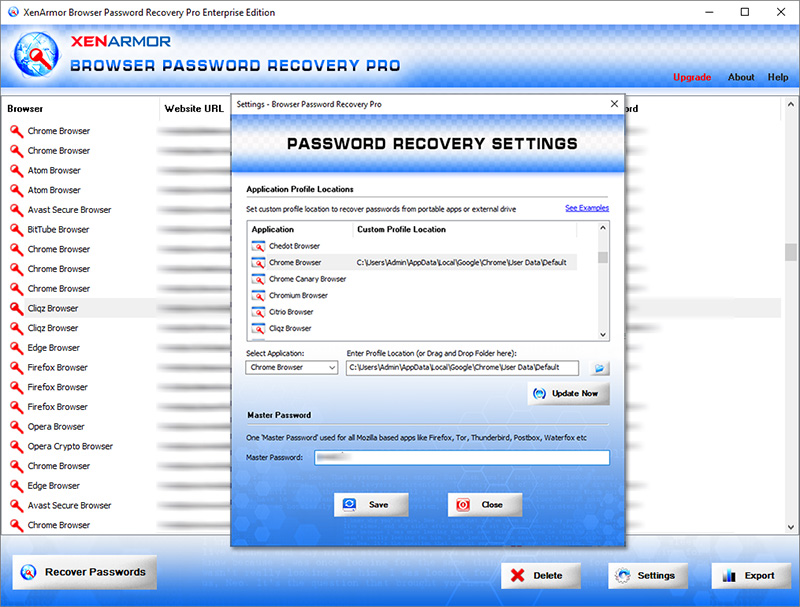
Here are the key features loved by users,
- Works across 140+ web browsers
- Recover all website passwords
- Also recover Form Autofill secrets (key, code, credit card etc)
- Extract from all profiles & custom locations
- Support command-line & automation
- Easily identify with multi-colored display
- Export secrets to PDF, HTML, CSV, JSON & more
👉 Free Download XenArmor Browser Password Recovery Pro
Recommended Posts

How to Switch from PIN to Password Login on Windows
November 29, 2025