

How to Recover Saved Passwords in sFTP


In this article, you’ll learn where sFTP stores your FTP login passwords, how they are protected, and how you can easily recover them.
sFTP Password Location
sFTP stores all your FTP login passwords at following location
[Windows Vista/7/8/10]
C:\Users\[user_name]\AppData\Roaming\sftpclient\db\connection_manager.db

[Windows XP/2003]
C:\Documents and Settings\[user_name]\Application Data\sftpclient\db\connection_manager.db
This “connection_manager.db” file is in JSON format and contains list of all the configured FTP site entries.
Here is the sample of one of the FTP site configuration (only important details shown),
{
"parent":null,
"type":"connection",
"name":"ftp.xenarmor.com",
"host":"ftp.xenarmor.com",
"conntype":"ftp",
"logontype":"normal",
"username":"xenuser",
"password":"pass123",
"privateKey":"",
"key_path":"",
"port":"21",
"remote_directory":""
}
Here “host”, “username” & “password” fields refer to FTP server, username & password respectively, all stored in clear text.
How to Recover sFTP Passwords Automatically
Now you can easily recover all your forgotten FTP login passwords from “sFTP” without any technical knowledge.
With just one click, XenArmor FTP Password Recovery Pro can recover all your saved FTP site passwords from sFTP in seconds.
Follow these simple steps,
- Download & install the software from here
- Click on “Recover Passwords”
- Instantly see all your saved sFTP passwords
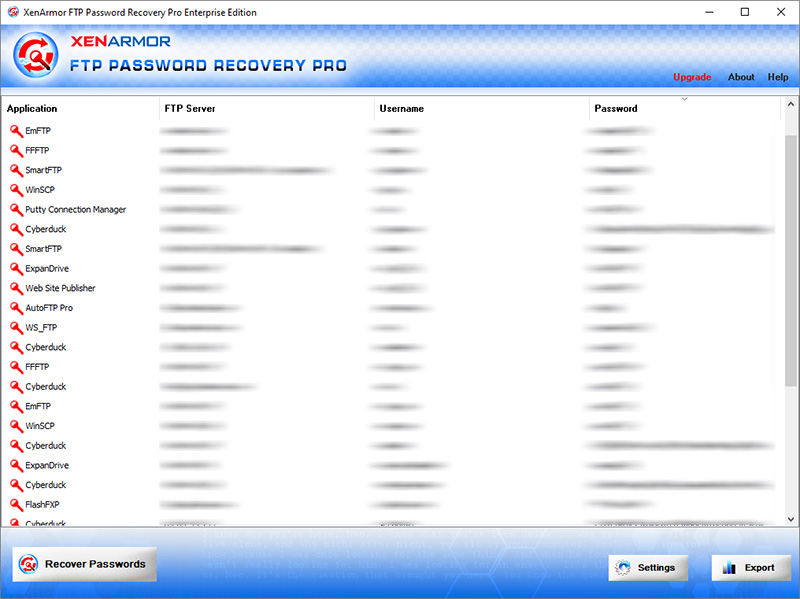
Here are the key features loved by users,
- Recover from 10+ FTP Clients
- Recover from both 32-bit & 64-bit apps
- Extract from all profiles & custom locations
- Support command-line & automation
- Export passwords to PDF, HTML, CSV, JSON & more
👉 Free Download XenArmor FTP Password Recovery Pro
Recommended Posts

How to Switch from PIN to Password Login on Windows
November 29, 2025