

User Guide – Windows Defender Manager Pro 2026 Edition


Contents
- About
- Benefits
- Requirements
- Installation
- How to Use?
- Context Menu to Exclude File
- Settings
- Backup Exclusion List
- How to Use Command-line Version
- Special Benefit: Protect your PC from Malwares
- Special Benefit: Remove Rogue Exclusions
- Version & Release History
- Contact XenArmor
About
 XenArmor Windows Defender Manager Pro is the enterprise software to continuously monitor & disable/enable Windows Defender.
Also prevent it from blocking your files, folders, processes or network computers. Just right click on any file, folder or process to add it to exclusion list of Defender.
It comes with advanced Real-time Status Monitoring feature to continuously check & maintain your chosen Defender status.
Benefits
Here are the main benefits for you,
- One-Click Control: Easily enable or disable Windows Defender with just a click of button
- Real-Time Monitor: Constantly checks & enforces your Defender status
- Protect Your PC: Safeguard your PC by preventing any malware from disabling Defender stealthily
- Run at Startup: Automatically applies your Defender status on system boot
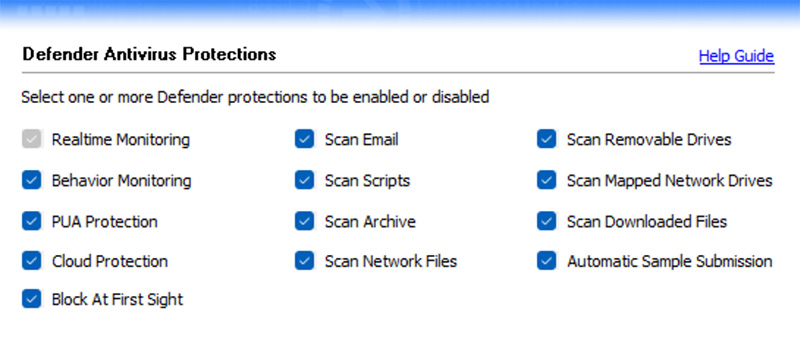
- All Protections: Selectively disable or enable all Defender protections
- Realtime Monitoring
- Behavior Monitoring
- PUA Protection
- Cloud Protection
- Block At First Sight
- Scan Email
- Scan Scripts
- Scan Archive
- Scan Network Files
- Scan Removable Drive
- Scan Mapped Network Drives
- Scan downloaded files & attachments DisableIOAVProtection
- Automatic Sample Submission
- Exclusion Manager: Add, remove or view all Defender exclusions
- Multi-Colored Display: Easily identify different type of Exclusions with color-coded report
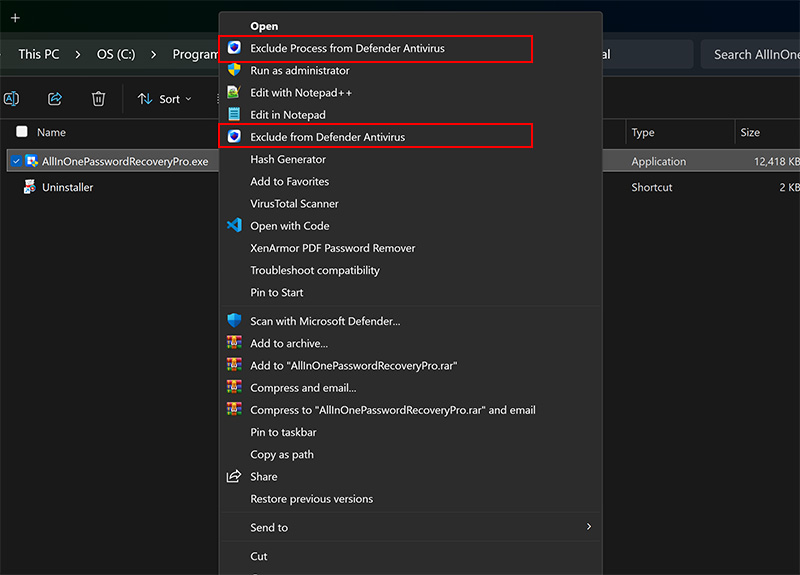
- Context Menu Support: Right-click on any file, folder or process to add it to exclusion list of Defender
- Remove Rogue Exclusions: Easily find & delete entries added by Malware
- Settings Manager: Configure all protections, monitoring time interval and options in one place
- Support All Exclusions: Manage all Exclusion types including file, folder, process, file type & IP address
- Backup Exclusions: Export all Exclusions to HTML,PDF,CSV,XML,JSON,SQLite file
- Launch Defender Settings: Directly open Defender settings, protection history, logs etc
- Command-line: Run all Defender tasks (enable/disable or add/remove exclusions) from your scripts
- Unlimited Portable Edition: Run on any PC from USB without Installation
- Bonus Software: Includes Free Gift of Wi-Fi Password Recovery Pro
- Supported Windows OS: Works on all 32-bit & 64-bit platforms from Windows 10 to Windows 11
Requirements
XenArmor Windows Defender Manager Pro works on both 32-bit & 64-bit platforms starting from Windows 10 to Windows 11.
Here are the specific details,
- Installation Size: 16 MB
- RAM: 4 GB+ Recommended
- Operating System: Windows 11,10 Windows Server 2025, 2022, 2019, 2016 (32-bit/64-bit)
Note: Mobile/pads/non-windows devices not supported
Installation
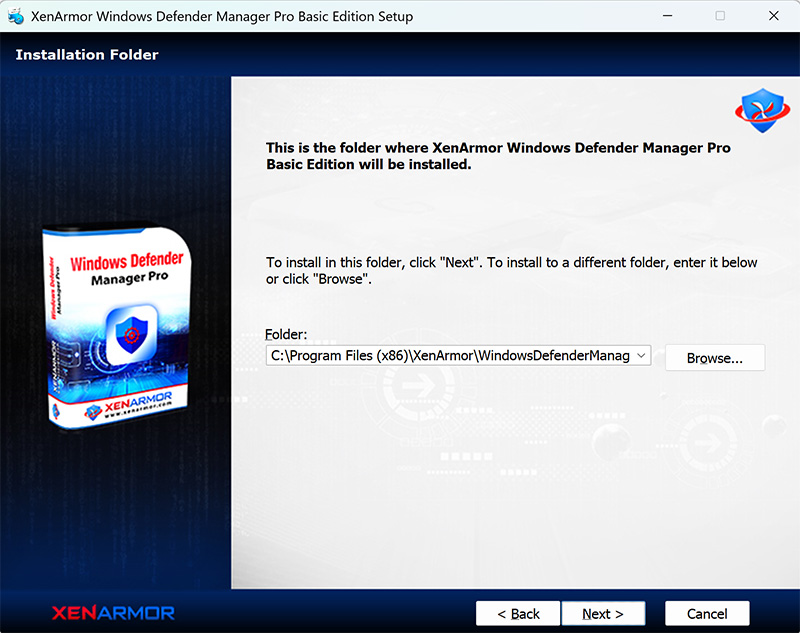
XenArmor Windows Defender Manager Pro comes with standard windows installer which allows seamless installation & un-installation.
Launch the setup file and follow on-screen instructions to complete the installation as shown below,
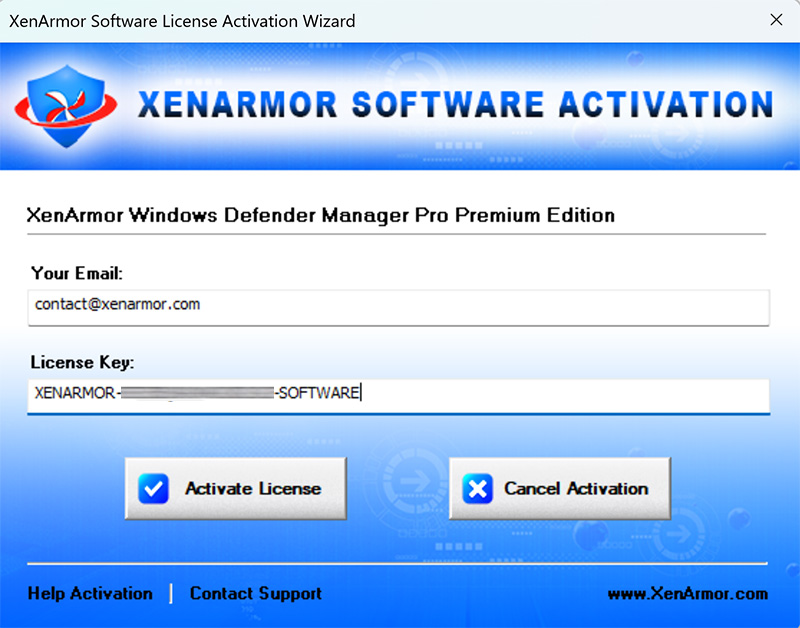
After installation, it will launch your software showing activation screen as follows,
Anytime, you can uninstall it directly from the Windows Add/Remove Programs.
How to Use?
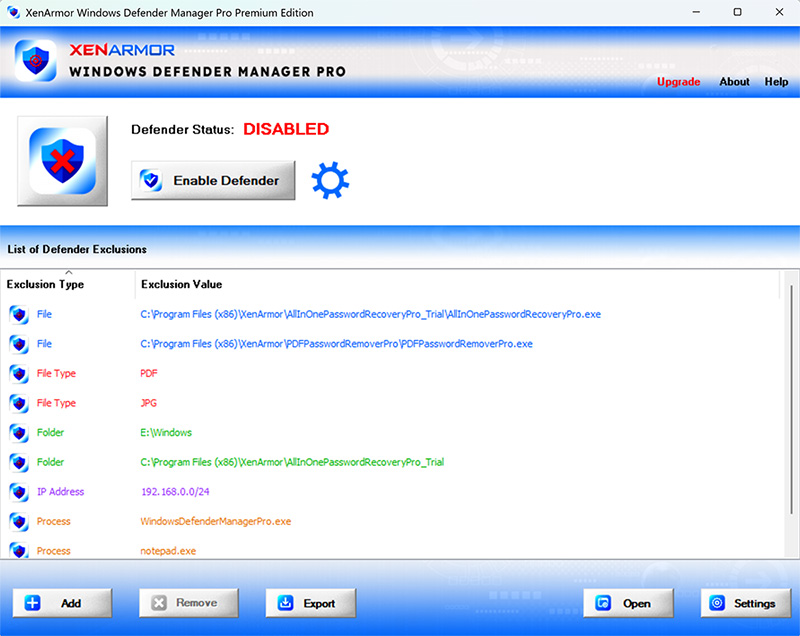
XenArmor Windows Defender Manager Pro is very easy to use. Just run it & click on “Disable/Enable Defender” button to instantly disable or enable Windows Defender respectively as shown below.
Once set, it continuously monitors Defender status and enforces your chosen status if Windows security enables it back. Anytime you can control this “Real time Monitoring” via Settings
Important Note: Whenever you minimize or close this application, it will be available in System Tray (bottom right corner). You can just click on it to re-launch the application.
Also it includes Exclusion Manager which shows list of all excluded entries in Defender (as shown above). Multi-colored display helps in quick identification of different type of exclusions. For more actiions, you can right click in the list or click on buttons to add, remove or export exclusions to file.
Add Exclusion to Defender
You can easily exclude any of your files or resources from Defender scanning by using Add Exclusion feature. To launch it, either click on “Add” button at the bottom of main screen or right click on the list and then click on “Add Exclusion”.
Then you will see Add Exclusion screen as shown below.
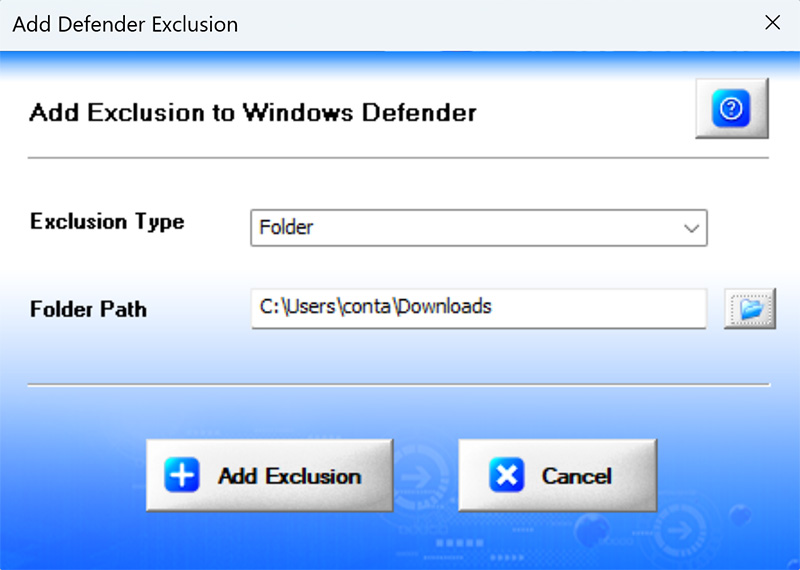
Here you can select any type of exclusion to add,
- File: Exclude single file
- Folder: Exclude folder & all the sub folders
- File Type: Exclude all files of particular extension (e.g PDF)
- Process: Exclude single process (e.g explorer.exe)
- IP Address: Exclude one or more computers in your network (e.g 192.168.0.100)
After adding successfully, you can see it in Exclusion Manager list (main screen)
Context Menu to Exclude File/Folder
Anytime, you can right click on your file, folder or process to add it to exclusion list of Defender as shown below.
Settings
Settings manager help you to configure all protections, monitoring time interval and general options in one place.
To launch, simply click on ‘Settings’ button from the main GUI screen and you will see the Settings panel as shown below,
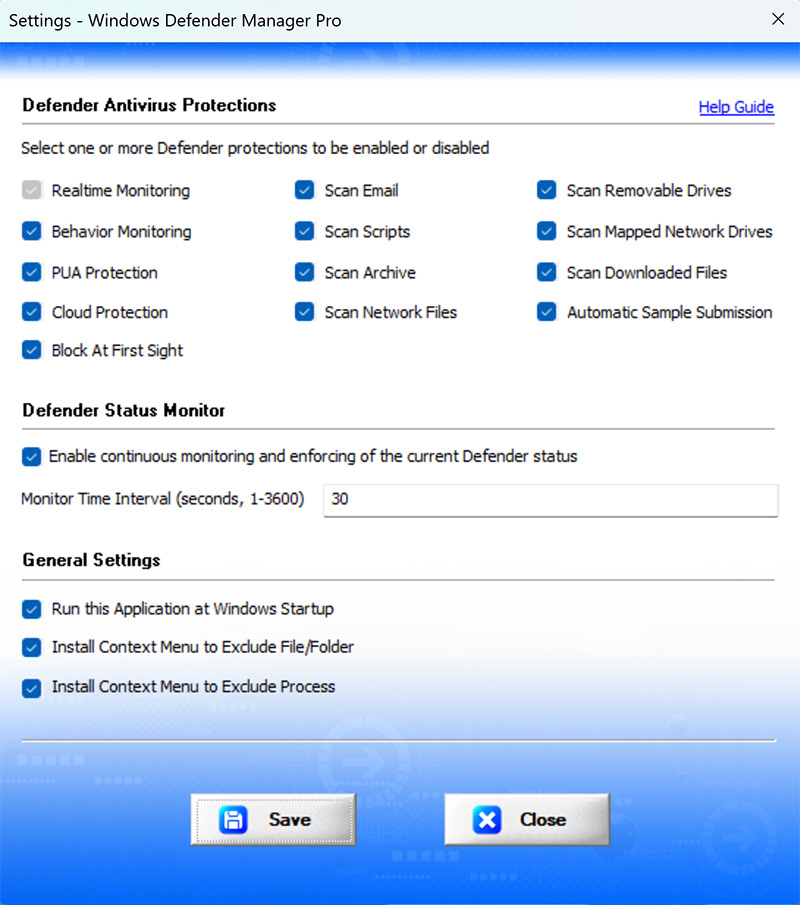
Refer to below sections for more details on each of the sections in Settings screen.
Settings – Defender Antivirus Protections
First section in Settings screen helps you to select or deselect all type of protections of Defender. Whenever you enable/disable Defender, these selected protections will be enabled/disabled accordingly.
Settings – Defender Status Monitor
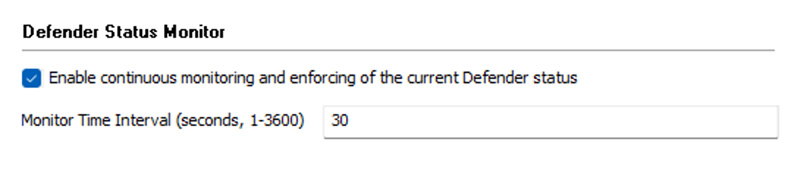
This is Real-time Monitoring feature continuously checks & maintains your chosen Defender status.
Here you can enable/disable it as per your need. Also set time interval for waiting before checking status again. By default it is set to 30 seconds and with maximum value 3600 seconds (60 min).
Tip: If you see that Windows security is able to change it then reduce this time interval to enforce your set status.
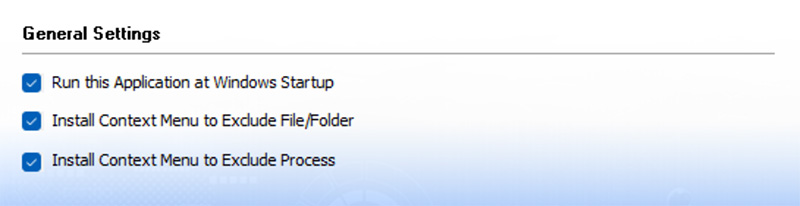
Settings – General Options
Last section contains options to control context menu & running at startup as shown below.
Backup Exclusion List
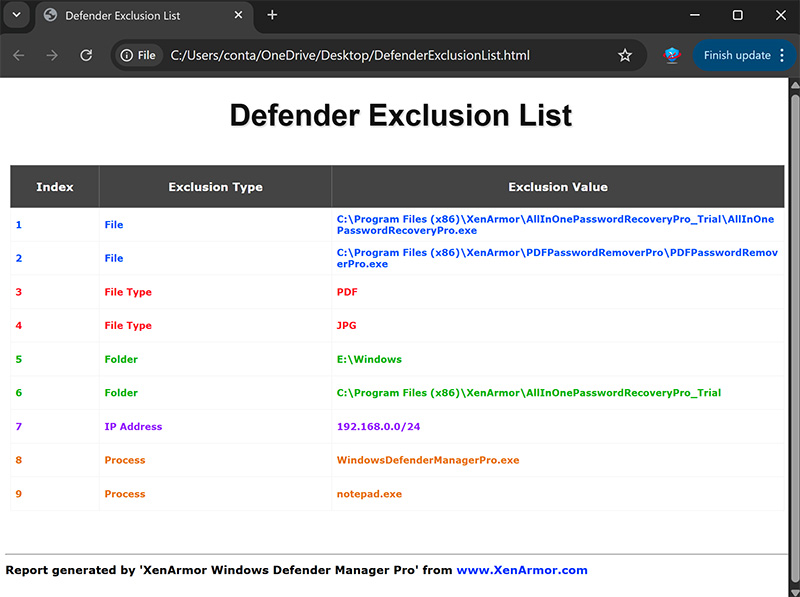
To backup all listed Defender Exclusions, click on Export button to save it to HTML, PDF, CSV, XML, JSON or SQLite Database file.
Here is the sample of HTML report,
How to Use Command-line
XenArmor Windows Defender Manager Pro also supports command-line options. It helps you to easily run various Defender tasks from your scripts or programs.
First launch command prompt (cmd.exe) as Administrator and then move to installation folder of this application.
Here are various command-line options & examples
Usage:
        WindowsDefenderManagerPro.exe [-e | -d | -s | -l | -a | -r | -h]  [-f | -i | -p | -t]  [exclusion_value]

Options:
         -d      Disable Defender
         -e      Enable Defender
         -s      Show Defender Status
         -l      List All Exclusions of Defender
         -a      Add Exclusion to Defender
         -r      Remove Exclusion from Defender
         -h      Show this help screen

Exclusion Type:
         -f      File/Folder
         -i      IP Address
         -p      Process
         -t      File Type (Extension)

Examples:
         //Disable Windows Defender
         WindowsDefenderManagerPro.exe -d

         //Enable Windows Defender
         WindowsDefenderManagerPro.exe -e

         //Show current status of Defender
         WindowsDefenderManagerPro.exe -s

         //List all exclusions of Defender
         WindowsDefenderManagerPro.exe -l

         //Add File exclusion to Defender
         WindowsDefenderManagerPro.exe -a -f "c:\my files\xen_secret.pdf"

         //Remove Process exclusion from Defender
         WindowsDefenderManagerPro.exe -r -p explorer.exe
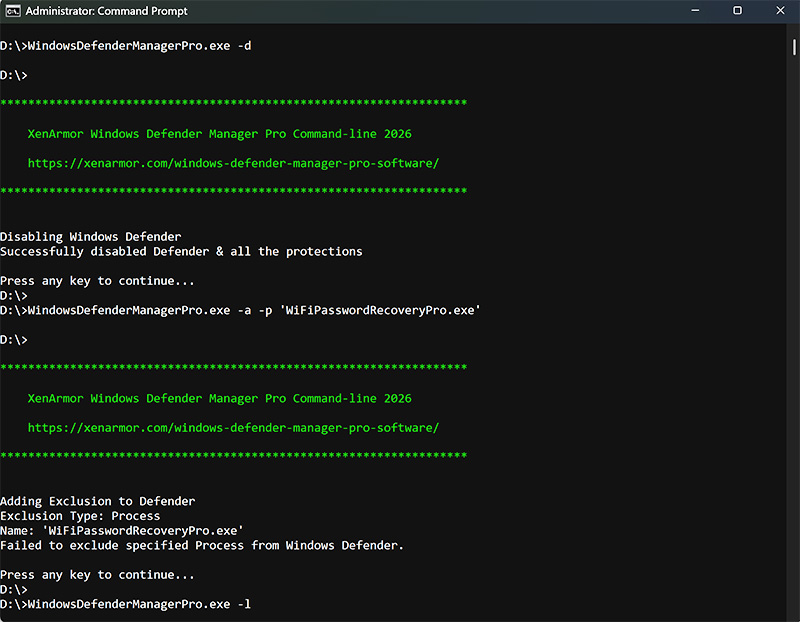
Here is the screenshot of using Command-line options
Note: This feature is available only in Premium & Unlimited Edition.
Special Benefit: Protect your PC from Malwares
“XenArmor Windows Defender Manager Pro” helps you to prevent any virus or malware from disabling Defender stealthily.
To evade detection, malwares often disable antivirus software before starting their main operation.
Now you can easily prevent it by using this application.
First, turn on Defender by clicking on “Enable Defender” button in the main screen.
Next make sure that “Real Time Monitoring” is enabled in Settings.
Now it will continously monitor and reset the Defender status whenever any app tries to disable it.
Special Benefit: Remove Rogue Exclusions
“XenArmor Windows Defender Manager Pro” helps you to easily identify and remove any exclusions added by rogue apps or malwares.
Most malwares add their files or processes to Exclusion List to prevent it from being blocked by Defender.
To detect it, carefully check entries (mainly file, folder or process) in Exclusion List. If you find anything suspicious, scan that file on VirusTotal.com to double-check it.
Once confirmed, you can proceed to remove that entry by clicking on “Remove” button or right click on the list & then click on “Remove Exclusion”.
Before removing, make sure to backup your list by clicking on “Export” button.
Version & Release History
Note: To get download link of latest update please contact our support team with your order details.
Version 3.0 (2026 Edition): 12th Mar 2026
Critical 2026 upgrade with following enhancements
- Fixed critical bug in app failing to run at startup
- Update Defender status whenever app is activated
- Improved messages for system tray notifications
Version 2.0 (2026 Edition): 7th Feb 2026
New 2026 release with following updates,
- Performance Enhancement: Optimized launch speed with single PowerShell check
- PDF Export: Backup Defender exclusion lists to PDF file
- Improved Notification: Added tray notification message to indicate app is still running
- Bug Fix: Resolved command-line path handling issues with quoted directories
- Free Gift Update: Upgraded free gift to latest Wi-Fi Password Recovery Pro 2026 Version
Version 1.0 (2026 Edition): 28 Dec 2025
First public release
Contact XenArmor
Have any more queries or need any technical clarification? Just write to us at support@xenarmor.com and you will have response within 24 to 48 hours.
For more details visit home page of XenArmor Windows Defender Manager Pro
Recommended Posts
User Guide – Windows Asterisk Password Pro 2025
August 11, 2025
User Guide – MAC IP Scanner Pro 2022
July 18, 2025
User Guide – Network SSL Certificate Scanner 2022
July 7, 2025