

How to Recover Saved Passwords in Norton Private Browser (Step-by-Step Guide)


In this guide, you will learn where Norton Private browser saves your passwords, how they are secured using encryption, and the easiest way to recover them instantly.
Norton Private Browser Password Storage Location
Norton Private browser stores all your website login credentials in a file named “Login Data”, located at:
C:\Users\[user_name]\AppData\Local\Norton\Browser\User Data\Default\Login Data
This file is a SQLite database containing a table called “logins”, where all saved credentials are stored.
Important Fields in “logins” Table
- origin_url => Website Page URL
- signon_realm => Website Domain
- username_value => Username or Email
- password_value => Encrypted Password
How Norton Private Browser Encrypts Passwords
Norton Private browser is a Chromium-based browser and follows a similar encryption model used by Chrome, Edge, Brave browser etc.
Older versions (below v80) encrypt passwords using Windows DPAPI, which can be decrypted via system APIs like CryptUnprotectData.
Newer versions (v80 and above) use a master encryption key stored in the “Local State” file:
C:\Users\[user_name]\AppData\Local\Norton\Browser\User Data\Local State
Encryption Key Details
- Older versions (< v135): encrypted_key
- Newer versions (> v135): app_bound_encrypted_key
The master key is stored in Base64 format and protected using Windows DPAPI along with modern encryption algorithms.
- AES-GCM
- ChaCha20
- AES+CNG (based on browser version)
Multi-Level Process to Decrypt Master Key
- Decode Base64 key
- Decrypt using System DPAPI
- Decrypt again using User DPAPI
- If not 32 bytes, decrypt further using AES-GCM, ChaCha20 or AES+CNG (v140+)
Final master key (32 bytes) is used to decrypt saved passwords using AES-256-GCM algorithm.
Important Note: Since Norton Private browser uses user-specific and machine-bound encryption, saved passwords cannot be decrypted from another user account or external drive unless advanced recovery methods are used (see solution at the end of this post).
How to Recover Norton Private Browser Passwords Automatically
Recovering Norton Private passwords manually can be time-consuming due to multiple encryption layers.
With XenArmor Browser Password Recovery Pro, you can instantly recover all Norton Private passwords with a single click.
Follow these simple steps:
- Download & install the software from here
- Click on “Recover Passwords”
- View all saved Norton Private browser passwords instantly
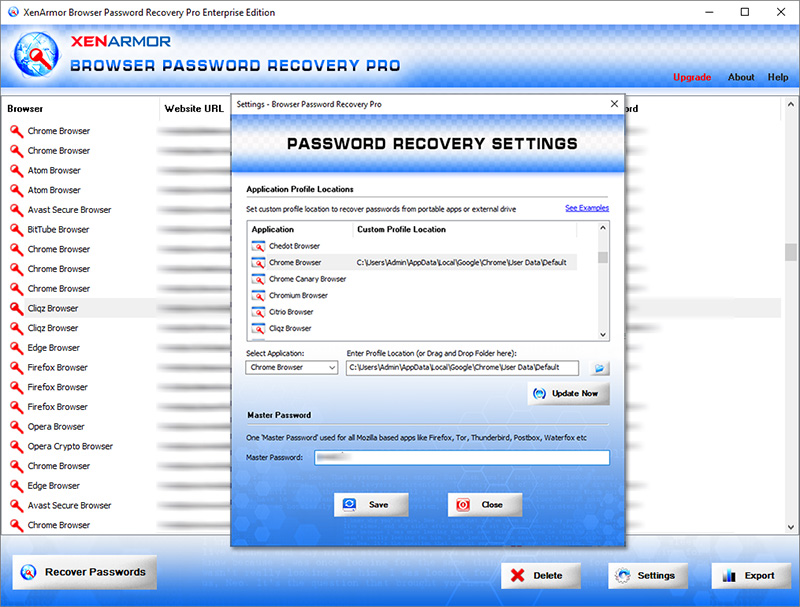
Key Features:
- Recover passwords from 140+ browsers
- Recover all website passwords
- Recover Form Autofill secrets (cards, codes, keys)
- Extract from all profiles & custom locations
- Command-line & automation support
- Export to HTML, PDF, CSV, JSON & more
👉 Free Download Browser Password Recovery Pro
To recover Norton Private browser passwords from external drives or other user accounts,