

How to Recover Saved Passwords in SlimBrowser (Step-by-Step Guide)


In this guide, you will learn where SlimBrowser stores your saved passwords, how they are secured using strong encryption, and the easiest way to recover them instantly when needed.
SlimBrowser Password Secrets
SlimBrowser stores all your website login credentials in a file named “logins.json”, located at:
C:\Users\[user_name]\AppData\Roaming\FlashPeak\SlimBrowser\Profiles\[random_name]\logins.json
This “logins.json” file is stored in JSON format and contains a separate entry for each saved website credential.
Below are the key fields included for every credential entry,
{
"id":1,
"hostname":"https://accounts.google.com",
"formSubmitURL":"https://accounts.google.com",
"encryptedUsername":"MDIEEPgBBBBABBBEwFAYIbaZIhvcNAwcEaAFsqdqBAiJyHK56O9cid==",
"encryptedPassword":"MDoEEPgBCCCCAAAAAAEwFCDIKoZIBAtABCG4rNAexni08zRm4Sraz/",
},
To safeguard the secrets, SlimBrowser uses the key that is derived from the Master Password. This key is then used to encrypt the username/password using SHA-1 and Triple DES encryption.
SlimBrowser Master Password
SlimBrowser allows you to set a Master Password to protect all your saved website credentials from unauthorized access. Once enabled, the stored passwords cannot be decrypted without providing this Master Password.
The Master Password itself is secured using a one-way hashing algorithm, meaning it cannot be directly decrypted. The only possible recovery method is through a brute-force attack, which can take a very long time depending on the password’s length and complexity.
SlimBrowser stores Master Password–related data in the files key4.db and cert9.db, located in the same profile folder. Older versions used key3.db and cert8.db.
Important Tip: Since SlimBrowser does not use user-specific or machine-bound encryption, its passwords from other user account or external drive can be recovered using the software mentioned below.
How to Recover SlimBrowser Passwords Automatically
Recovering SlimBrowser passwords manually can be complex and time-consuming due to multiple layers of encryption.
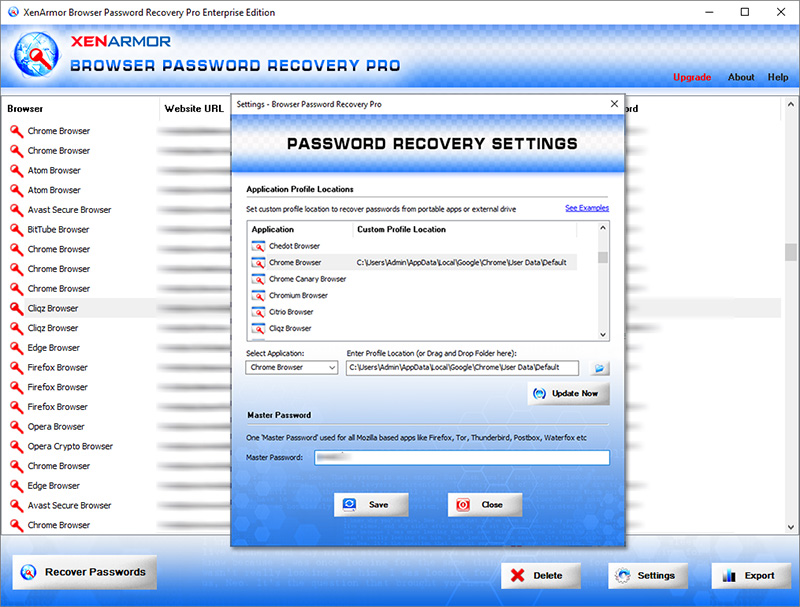
With XenArmor Browser Password Recovery Pro, you can instantly recover all SlimBrowser passwords from every profile across all user accounts.
If a Master Password is set, you can simply provide it in the Settings to automatically recover all saved passwords.
Follow these simple steps:
- Download & install the software from here
- Click on “Recover Passwords”
- View all saved SlimBrowser passwords instantly
Key Features:
- Recover passwords from 140+ browsers
- Recover all website passwords
- Recover Form Autofill secrets (cards, codes, keys)
- Extract from all profiles across all user accounts
- Extract from custom locations
- Command-line & automation support
- Export to HTML, PDF, CSV, JSON & more
👉 Free Download Browser Password Recovery Pro
To automatically recover SlimBrowser passwords from external drives,